Showing posts with label I.T Information. Show all posts

സൗജന്യ എസ്.എം.എസ്. അലര്‍ട്ടുമായി ഹോട്ട്‌മെയില്‍.

സൗജന്യ എസ്.എം.എസ്. അലര്‍ട്ടുമായി ഹോട്ട്‌മെയില്‍.

ഇമെയില്‍ രംഗത്ത് യാഹുവിന്റെയും ഗൂഗിളിന്റെയും കടന്നുകയറ്റത്തോടെ കുത്തക നഷടപ്പെട്ട മൈക്രോസോഫ്ടിന്റെ ഹോട്ട്‌മെയില്‍ ഇപ്പോള്‍ അതിജീവനത്തിനായി പുതിയ വഴി തേടുകയാണ്. സ്ഥിരമായി ഇമെയില്‍ നോക്കാത്ത വ്യക്തികള്‍ക്കും സ്വന്തമായി ഇന്റര്‍നെറ്റ് കണക്ഷനില്ലാത്തവര്‍ക്കും സൗകര്യപ്രദമായ സംവിധാനമാണ് ഇപ്പോള്‍ ഹോട്ട്‌മെയില്‍ അവതരിപ്പിച്ചിട്ടുള്ളത്. സൗജന്യ എസ്.എം.എസ്.അലര്‍ട്ടാണ് പുതിയ സംവിധാനം.

നിങ്ങളുടെ ഹോട്ട്‌മെയില്‍ ഇന്‍ബോക്‌സില്‍ ഒരു പുതിയ മെയില്‍ വന്നുകഴിഞ്ഞാല്‍ ഉടന്‍തന്നെ, അതെപ്പറ്റി ചെറിയൊരു വിവരണം നിങ്ങളുടെ മൊബൈല്‍ ഫോണിലേക്ക് എസ്.എം.എസ് ആയി അയയ്ക്കും. വന്ന മെയിലിന്റെ സ്വഭാവം നോക്കി, അത്യാവശ്യമുള്ളതാണെങ്കില്‍ മാത്രം ഇന്റര്‍നെറ്റ് കണക്ട് ചെയ്ത് മെയില്‍ പരിശോധിച്ചാല്‍ മതി.

ഈ സംവിധാനം ലഭിക്കാന്‍ വേണ്ടി ഹോട്ട്‌മെയില്‍ ഉപഭോക്താക്കള്‍ www.mobile.live.com എന്ന വെബ്‌സൈറ്റില്‍ കയറിയ ശേഷം നിങ്ങളുടെ മൊബൈല്‍ നമ്പര്‍ അവിടെ നല്‍കുക. തുടര്‍ന്ന് നിങ്ങളുടെ മൊബൈലിലേക്ക് അവര്‍ അയക്കുന്ന വെരിഫിക്കേഷന്‍ കോഡും നല്‍കുക. ഇത്രയും വിവരങ്ങള്‍ നല്‍കിയാല്‍ തുടര്‍ന്ന് നിങ്ങള്‍ക്ക് ഈ സൗകര്യം ലഭ്യമാകും.

ഇമെയില്‍ ഉപഭോക്താക്കളുടെ ഇടയില്‍ വിപ്ലവകരമായ മാറ്റമായിരിക്കും ഈ സംവിധാനം വഴി ഉണ്ടാവുക എന്ന് പ്രതീക്ഷിക്കുന്നു. നിലവില്‍ ചില വെബ്‌സൈറ്റുകള്‍ ഈ സംവിധാനം നല്‍കുന്നുണ്ടെങ്കിലും അവയൊന്നും ഇമെയിലിലേക്ക് നേരിട്ട് ബന്ധം നല്‍കുന്നില്ല.

ഹോട്ട്‌മെയിലിന്റെ പുതിയ സേവനം ലഭിക്കാന്‍ ഫോണില്‍ പ്രത്യേകമായ സെറ്റിങ്ങ്‌സ് ഒന്നും ചെയ്യേണ്ടതില്ല. ജൂണ്‍ 10 മുതലാണ് ഈ സേവനം ആരംഭിച്ചത്.

by net

ബ്ലാക്ക്‌ബെറി ടാബ്‌ലറ്റ്

Fun & Info @ Keralites.net


ടൊറാന്റോ: എല്ലാ വിവാദങ്ങളേയും ആരോപണങ്ങളേയും കവച്ചുവെച്ച് ബ്ലാക്ക്‌ബെറി ടാബ്‌ലറ്റ് പ്ലേബുക്ക് വിപണിയിലെത്തി. മൊട്ടോറോള, സാംസങ് എന്നിവയുടെ ടാബ്‌ലറ്റുകളെ കടത്തിവെട്ടുന്ന രീതിയിലാണ് പ്ലേബുക്ക് വില്‍പ്പന എന്നാണ് റിപ്പോര്‍ട്ട്.
പുറത്തിറക്കിയ ദിവസം തന്നെ അഞ്ചുലക്ഷം പ്ലേബുക്കുകളാണ് റിസര്‍ച്ച് ഇന്‍ മോഷന്‍ (റിം) വിറ്റഴിച്ചതെന്നാണ് റിപ്പോര്‍ട്ട്. ആപ്പിള്‍ അതിന്റെ അഭിമാന മോഡലായ ഐപാഡ് കൊണ്ടുവന്നപ്പോള്‍ ലഭിച്ചതിനേക്കാളും മികച്ച പ്രതികരണമാണ് പ്ലേബുക്കിന് ലഭിക്കുന്നതെന്നും കമ്പനി അവകാശപ്പെടുന്നു.
ഏപ്രില്‍ മാസത്തിലായിരുന്നു ആപ്പിള്‍ ഐപാഡ് പുറത്തിറക്കിയത്. ഏതാണ്ട് മൂന്നുലക്ഷത്തോളം ഐപാഡുകള്‍ ആദ്യദിനം തന്നെ വിറ്റഴിഞ്ഞിരുന്നു. സാംസങിന്റെ ഗ്യാലക്‌സ് ടാബ്‌ലറ്റും പ്ലേബുക്കിന് പിറകിലേ വരൂ എന്നും കമ്പനി അവകാശപ്പെടുന്നു.


ഇന്റെര്‍ വലയില്‍ ഒരുപാട് കുടുങ്ങുമ്പോള്‍ 


ദിവസത്തിന്റെ നല്ലൊരു പങ്കും ഇന്റര്‍നെറ്റില്‍ കുരുങ്ങി കഴിയുന്നവര്‍ക്ക്‌ ഒരു മുന്നറിയിപ്പ്‌. എത്രയും വേഗം 'ടെക്‌നോളജി ഡയറ്റ്‌' നോക്കിയില്ലെങ്കില്‍ മാനസികാരോഗ്യം അവതാളത്തിലാകും. കലിഫോര്‍ണിയ സര്‍വകലാശാല(സാന്‍ ഫ്രാന്‍സിസ്‌കോ)യിലെ വിദഗ്‌ധസംഘം നടത്തിയ പഠനത്തിലാണ്‌ ഈ കണ്ടെത്തല്‍. ഇ-മെയില്‍, ട്വീറ്റ്‌സ് തുടങ്ങി വിവിധ മേഖലകളില്‍ ഒരേസമയം മാറിമാറി വ്യാപരിക്കുന്നതിലൂടെ, ആവശ്യമുള്ളതും അല്ലാത്തതുമായ 'അധിക വിവരങ്ങള്‍' നമ്മുടെ മനസിനെ തളര്‍ത്തുമെന്നാണു പഠനത്തില്‍ തെളിഞ്ഞത്‌. ഇത്തരക്കാര്‍ക്ക്‌ ഒരു പ്രവൃത്തിയില്‍നിന്ന്‌ മറ്റൊന്നിലേക്കു മാറാനും പ്രതിസന്ധികളെ അതിജീവിക്കാനുമുള്ള ശേഷി കുറയും.
സ്‌മാര്‍ട്ട്‌ ഫോണുകളുടെ കടന്നുവരവോടെ ഏതുസമയവും ഇന്റര്‍നെറ്റില്‍ വിഹരിക്കാന്‍ കഴിയുമെന്ന അവസ്‌ഥ മുതിര്‍ന്നവരുടെപോലും മാനസികാരോഗ്യത്തെ ബാധിക്കുന്നു. ഒരേസമയം ഇന്റര്‍നെറ്റിലെ ഒട്ടേറെ സങ്കേതങ്ങള്‍ കൈകാര്യം ചെയ്യുന്നത്‌ ഓര്‍മശക്‌തി കുറയ്‌ക്കുമെന്നു നേരത്തേ സ്‌റ്റാന്‍ഫോഡ്‌ സര്‍വകലാശാലയിലെ വിദഗ്‌ധസംഘം നടത്തിയ പഠനത്തില്‍ കണ്ടെത്തിയിരുന്നു. ചെറുപ്പക്കാര്‍ പ്രതിദിനം ശരാശരി ഏഴര മണിക്കൂറിലേറെ കീബോര്‍ഡിനു മുന്നില്‍ തപസിരിക്കുന്നുണ്ടെന്നാണു കണക്ക്‌. 
thanks mangalam com

follow Mobile Safety


Fun & Info @ Keralites.net


Fun & Info @ Keralites.net


Fun & Info @ Keralites.net


Fun & Info @ Keralites.net

Fun & Info @ Keralites.net


Fun & Info @ Keralites.net


Fun & Info @ Keralites.net

Fun & Info @ Keralites.net


Fun & Info @ Keralites.net


by net

10 Ways to Speed Up Google Chrome Browser


Even though the newly launched Google Chrome is quite fast and stable, some of you might still find it a little slower to match your imagination. With the refurbished smart interface and default browsing speed, the browser might have been a flawless introduction, if it was designed to accommodate a little more speed. However, you can’t deny the potential efficiency of Google Chrome! The browser is here to take you to the next level of web revolution. Without compromising its working efficiency and simplicity, you can still customize it to equip it with more speed. Yes, it’s yet possible. How? Read on to know the most 10 wired ways to help Google Chrome work fast.

Google Chrome

1. Save CPU time and Internet bandwidth by disabling anti-phishing filter. Before working on it, make sure you are familiar with the designs of phishing sites and know how to stop them on your own from interfering on your web presences. A little web knowledge will help you disable your Google Chrome’s anti-phishing filter. The action will help you save your CPU time and Internet bandwidth and thereby increasing the speed of your Chrome. The action can be initiated by visiting Tools menu > Options > Advanced.2. Stay away from log files – disable them. By allowing Google Chrome not to work for your log files, you actually help your browser work fast! In most of the times, these log files are of no use; however, they affect your browser’s speed considerably. Therefore, the best idea is to keep them disabled. By disabling logging files, you prevent your browser from recording your browser activity. Primarily, these log files come into your aid when you crash or face critical unmanageable errors. You may neglect such possibility and move ahead towards disabling them just to free some of your RAM spaces in order to speed up your browser activity.

3. Stop Google Chrome mind usage statistics. The usage statistics are of no use for you. Google collect the data in order to improve their services. But, it taxes on your speed. You may disable the option without posing any risk to your operation. The option can easily be disabled by unchecking the check box for ‘Send usage data to Google’ available at Tools menu > Options > Advanced.4. Select and activate Disable-images. This is especially advisable and fruitful if you are using a slow Internet connection, such as a Dial Up or GPRS one. By disabling images, you ask your browser to present your desired web pages without actually displaying images associated. Certainly, it will help you gain some speed on your Chrome. Remember, your browser will then become a text only browser.
5. Clean navigational data at interval. Navigational data stored in cache helps browsers deliver frequently visited web pages fast. But, a big cache or very old data stored there virtually slows your browser’s working efficiency. Therefore, it is advisable you should clean your cache regularly in order to remove old navigational data. The effort that can be activated by exploring the “Remove navigation data” option available at the Tools menu may helps Google Chrome gain a little added speed.6. Say ‘No’ to metrics-system and metrics-reporting. Google uses metrics-system and metrics-reporting to evaluate usage statistics and thereby effecting their web offerings. These two tools have no direct impact on your web-benefit. By allowing them work at background, you actually authorize Google Chrome to work slow. It is a better idea to dissociate them from working with you.
7. Uncheck DNS Preload. You really don’t need to keep DNS info stored into the cache of your Chrome. Storing such info may affect negatively in achieving optimum speed by your browser. If you are not using old-fashioned dial up connection or accessing Internet through your mobile phone, you must disable Google Chrome’s “Use DNS preload ….” option available under the “Advanced” tab of Tools menu.8. Remove plugins option. Plugins play an important role in deciding true speed of a browser. In order to ensure a better speed of your Chrome, you must disable plugins. Even though such selection may prevent you from enjoying many media sites and playing Flash player and other media players appropriately, the practice is a good one when negotiating speed for your Chrome browser.
9. Disable Java. Until and unless you extremely love to play on Java applets, it is recommended you should keep Java disabled. Nowadays Java is not being used actively on web; but if you allow it to stay enabled, your browser has to function slowly. Barring a few exceptional cases of playing games, disabling Java does not affect safety of your browser. “C: Documents and Settings %username% Local Settings Application Data GoogleChrome.exe” and “C:UsersAppData Local GoogleChrome Application chrome.exe -disable-java” are the two useful links by which you can disable Java for Windows XP and Windows Vista respectively.
10. Remove dev-tools. If you are not an expert web developer, you don’t need the Google Chrome dev-tools. And, in such case, it will be a wise decision to disable these dev tools. Finding no dev-tools hindering its performances, your Google Chrome will surely gain momentum in offering an increased speed.

ഇനി കാര്‍ഡ് വേണ്ട ഫോണ്‍ മതി


സാന്‍ഫ്രാന്‍സിസ്‌ക്കോ: കാര്‍ഡുപയോഗിച്ച് പണമടയ്ക്കാനുള്ള സൗകര്യം തന്നെയായിരുന്നു ഷോപ്പിങ് രംഗത്ത് ഈയടുത്ത കാലത്തുണ്ടായ ഏറ്റവും വലിയ വിപ്ലവം. ആവശ്യത്തിലേറെ പണം കൈയില്‍ കൊണ്ടു നടക്കേണ്ടതില്ലെന്ന് വന്നതോടെ കാര്‍ഡില്ലാത്തവര്‍ ചുരുക്കമായി. എന്നാല്‍, ഈ രംഗത്ത് പുതിയൊരു പരീക്ഷണത്തിനൊരുങ്ങുകയാണ്
ഇന്റര്‍നെറ്റ് സെര്‍ച്ച് എന്‍ജിന്‍ കമ്പനിയായ ഗൂഗിള്‍.

ഷോപ്പിങ് നടത്തുമ്പോള്‍ കാര്‍ഡിന് പകരം തങ്ങളുടെ ആന്‍ഡ്രോയിഡ് മൊബൈല്‍ഫോണ്‍ ഉപയോഗിച്ച് പണമടയ്ക്കാനുള്ള സങ്കേതമാണ് ഗൂഗിളിന്റെ പണിപ്പുരയില്‍ ഒരുങ്ങുന്നത്. ഇതിനായി ഗൂഗിള്‍ പ്രമുഖ സാമ്പത്തിക സേവനദാതാക്കളായ സിറ്റി ഗ്രൂപ്പുമായും മാസ്റ്റര്‍കാര്‍ഡുമായും യോജിച്ച് പ്രവര്‍ത്തിക്കാനൊരുങ്ങുകയാണെന്നും റിപ്പോര്‍ട്ടുകള്‍ സൂചിപ്പിക്കുന്നു. ഇത് സംബന്ധിച്ച് കമ്പനികള്‍ ഇതുവരെ പ്രതികരിച്ചിട്ടില്ല.

തുടക്കത്തില്‍ സിറ്റി ഗ്രൂപ്പിന്റെ ഉപഭോക്താക്കള്‍ക്കായിരിക്കും സേവനം ലഭ്യമാവുക. ഗുഗിളിന്റെ ആന്‍ഡ്രോയിഡ് ഫോണുകളിലെ ഒരു മോഡലായിരിക്കും സേവനങ്ങള്‍ക്ക് തിരഞ്ഞെടുക്കുക. റീട്ടെയില്‍ ഷോപ്പുകള്‍ക്ക് ഉപഭോക്താക്കളെ സംബന്ധിച്ച് കൂടുതല്‍ വിവരങ്ങള്‍ ലഭ്യമാവുമെന്നതാണ് ഈ സേവനത്തിന്റെ പ്രത്യേകത. അതുകൊണ്ട് തന്നെ പിന്നീട് പുതിയ ഓഫറുകള്‍ സംബന്ധിച്ചുള്ള കാര്യങ്ങളും മറ്റും ഇവര്‍ക്ക് എഴുപ്പത്തില്‍ അയച്ചുകൊടുക്കാനും പുതിയ സേവനം വഴിയൊരുക്കും. കൂടാതെ ഉപഭോക്താക്കള്‍ക്ക് ക്രെഡിറ്റ് കാര്‍ഡും ഫോണും ഒരുമിച്ച് കൊണ്ടു നടക്കേണ്ട ബുദ്ധിമുട്ടും ഒഴിവാകും.
by net

പി.എസ്.സി പരീക്ഷകള്‍ ഇനി നിങ്ങളുടെ കമ്പ്യൂട്ടറില്‍!


!
                         
                             പി.എസ്.സി ഉദ്യോഗാര്തികള്‍ക്കൊരു സഹായ ഹസ്തവുമായി പിഎസ് സിമോക്ടെസ്റ്റ്.കോം (www.pscmocktest.com) എന്ന വെബ്സൈറ്റ് തുടങ്ങിയിരിക്കുന്നു . എല്‍ ഡി ക്ലാര്‍ക്ക് , പോലീസ് കോണ്‍സ്റ്റബിള്‍ തുടങ്ങി വിവിധ പി എസ് സി പരീക്ഷകളുടെ ചോദ്യ പേപ്പര്‍ മാതൃകകല്ലും അവയുടെ ഉത്തരങ്ങളും തികച്ചും സൌജന്യം ആയി ഓണ്‍ലൈനില്‍ ചെയ്തു പഠിക്കാം എന്നതാണ് ഈ വെബ്സിടിന്‍ -ന്‍റ്റെ പ്രത്യേകത .
by net

Interesting Computer Trick Make Computer Fast


There are lots of articles and posts available in the internet that describes how you make your computer fast. On of these is applying best performance option in the control panel. But enabling this option you have to compromise with best appearance which you dont want. But dont worry, I have a trick in which you will get best performance without compromising your best appearance settings. I already applied this trick with my PC for the past 10 years and its working fine.
Follow the Steps below.Step1: Right click on desktop and select properties.Step2: In the appearance tab, click on effects, tick the 2nd option(if not already selected) and in the drop down menu select clear type. Uncheckable all the options, then click ok and apply.Now in the theme tab save your settings say my theme for example, then apply and OK Step4: Now right click on my computer, go to advance>performance settings and select adjust for best performance, then click apply then OK.
( Note: if you already performed this step before step 1&2, then you have to select for best appearance first before applying step 1 )Step5: Right click on desktop and select properties Step6: In the theme tab, in the drop down menu of save as option select my current theme and click on apply button. Again in the drop down menu select my theme as you saved earlier and click on apply and then ok and you are done.This is all check your computer speed.. Amazing right, it increased.


by net


Mozilla fire fox4

sankar-edakurussi


IE9യും ഗൂഗിള്‍ ക്രോം 10 നേയും നേരിടാന്‍ മോസില ഫയര്‍ഫോക്‌സിന്റെ പുതിയ പതിപ്പ്‌ . കാഴ്‌ചയിലും പ്രവര്‍ത്തനത്തിലും നിലവിലുളള ഫയര്‍ഫോക്‌സ് 3.6.15 ല്‍ നിന്ന്‌ ഏറെ മാറ്റങ്ങളുമായാണ്‌ പുതിയ പതിപ്പ്‌ വരുന്നത്‌ . ടാബ്‌ ലേഔട്ടില്‍ മാറ്റം പ്രകടമാണ്‌ . അഡ്രസ്‌ബാറിലെ മാറ്റങ്ങളും ശ്രദ്ധേയം. പാസ്‌വേര്‍ഡുകള്‍, ബുക്ക്‌മാര്‍ക്ക്‌സ് , ഹിസ്‌റ്ററി, ടാബുകള്‍ എന്നിവയും കൂടുതല്‍ ഉപഭോക്‌തൃ സൗഹൃദത്തിലായി. നിലവിലുള്ള പതിപ്പിനെക്കാള്‍ മൂന്നിരട്ടി വേഗവും ആറിരട്ടി സൗകര്യങ്ങളും പുതിയ പതിപ്പിലുണ്ടെന്നാണ്‌ അവകാശവാദം.

പുതിയ ജാവ സ്‌ക്രിപ്‌റ്റ്‌ എഞ്ചിനാണ്‌ ഉപയോഗിക്കുന്നത്‌ . WebM ,HD-videos എന്നിവയേയും പിന്തുണയ്‌ക്കും. മൊബൈല്‍ ഫോണുകള്‍ക്കായുളള പതിപ്പും രംഗത്തുണ്ട്‌ .


തിരുവന്തപുരക്കാരേ ഭയപ്പെടേണ്ട

sankar-edakurussi

തിരുവനന്തപുരം: നിങ്ങള്‍ അപകടത്തിലാണോ? കയ്യില്‍ മൊബൈലുണ്ടോ? എങ്കില്‍ ഭയക്കേണ്ട. ചെയ്യേണ്ടത് ഇത്രമാത്രം, മൊബൈലിലെ ‘2’ എന്ന ബട്ടണ്‍ അമര്‍ത്തിപ്പിടിക്കുക. നിങ്ങള്‍ അപകടത്തില്‍ പെട്ടിരിക്കുകയാണെന്ന സന്ദേശം സഹായിക്കുവാന്‍ കഴിയുന്നവരുടെ മൊബൈലുകളിലേക്ക് പ്രവഹിക്കും. മാത്രമോ, 5 മിനിറ്റുകള്‍ക്കുള്ളില്‍ ആയോധനകലയില്‍ പ്രാവീണ്യം നേടിയ ഒരു സെക്യൂരിറ്റി ഗാര്‍ഡും അപകടസ്ഥലത്തേക്ക് പാഞ്ഞെത്തും.
അത്ഭുതപ്പെടേണ്ട! നമ്മുടെ കൊച്ചുകേരളത്തില്‍ ഉപയോഗിക്കുന്ന മൊബൈലുകളില്‍ പോലും ഈ സഹായം ലഭിക്കും. ഇതിനായി, ടെക്നോപാര്‍ക്കിലെ പ്രമുഖ ഐടി കമ്പനിയായ റെയ്ന്‍ കണ്‍സള്‍ട്ടും അനുബന്ധ സ്ഥാപനമായ ഇറാം സയന്റിഫിക് സൊല്യൂഷന്‍സും സഹകരിച്ച് വികസിപ്പിച്ചെടുത്ത മൊബൈല്‍ സുരക്ഷാസംവിധാനമായ ‘ഇന്‍ ആന്‍ എമര്‍ജന്‍സി’ നിങ്ങളുടെ മൊബൈലില്‍ ഇന്‍സ്റ്റാള്‍ ചെയ്തിരിക്കണം എന്ന് മാത്രം.
‘ഇന്‍ ആന്‍ എമര്‍ജന്‍സി’ സംവിധാനം മൊബൈലില്‍ ഇന്‍സ്റ്റാള്‍ ചെയ്യുന്നതിന് വെറും 500 രൂപ നല്‍‌കിയാല്‍ മതിയാകും. മൊബൈലില്‍ വിരല്‍ അമര്‍ത്തിയാല്‍ സഹായം അഭ്യര്‍ത്ഥിച്ചുകൊണ്ടുള്ള സന്ദേശം ‘ഇന്‍ ആന്‍ എമര്‍ജന്‍സി’ സര്‍വറില്‍ എത്തുകയും അവിടെ നിന്നും മറ്റ് മൊബൈലുകളിലേക്കു പോകുകയും ചെയ്യുന്നതാണ് പദ്ധതിയുടെ പ്രവര്‍ത്തന രീതി. പൊലീസിന്‍റെയും റസിഡന്‍റ്സ് അസോസിയേഷനുകളുടെയും സഹകരണത്തോടെ ആയായിരിക്കും പദ്ധതി നടപ്പാക്കുക.
‘ഇന്‍ ആന്‍ എമര്‍ജന്‍സി’ സംവിധാനം ഇപ്പോള്‍ തിരുവനന്തപുരത്ത് മാത്രമാണ് ലഭ്യമാവുക. നിങ്ങള്‍ തിരുവനന്തപുരത്ത് എവിടെയായാലും അഞ്ച് മിനിറ്റിനുള്ളില്‍ സഹായമെത്തിക്കാന്‍ കഴിയുന്നവണ്ണം സെക്യൂരിറ്റി ഗാര്‍ഡുകാരെ കമ്പനി വിന്യസിക്കും. ഈ പദ്ധതി തിരുവനന്തപുരത്ത് വിജയകരമായാല്‍ സംസ്ഥാനത്തൊട്ടാകെ വ്യാപിപ്പിക്കാനാണ് ഉന്നമിടുന്നതെന്ന് ഇറാം സയന്‍റിഫിക് സൊല്യൂഷന്‍സ് സെയില്‍സ് ആന്‍ഡ് മാര്‍ക്കറ്റിങ് വിഭാഗം തലവന്‍ ഗിരീഷ് ചന്ദ്രബാബു പറയുന്നു.
സഹായത്തിനെത്തുന്നവര്‍ക്കു സ്ഥിതിഗതികള്‍ നിയന്ത്രിക്കാന്‍ കഴിഞ്ഞില്ലെങ്കില്‍ തൊട്ടടുത്ത പൊലീസ് സ്റ്റേഷനിലേക്കും മറ്റും സന്ദേശം എത്തിക്കുവാനുള്ള സംവിധാനവും ഈ സംവിധാനത്തിലൂടെ പറ്റും. ഇതോടൊപ്പം സമീപത്തെ വീടുകളിലെ അലാറം മുഴക്കാനും ലൈറ്റുകള്‍ തെളിക്കാനും കഴിയും.
അപകടസ്ഥലത്ത് മറ്റാര്‍ക്കും എത്താന്‍ കഴിഞ്ഞില്ലെങ്കിലും 5 മിനിറ്റിനുള്ളില്‍ ഓടി എത്താന്‍ കഴിയുന്ന വിധത്തില്‍ രണ്ടു കിലോമീറ്റര്‍ അകലത്തിലായിരിക്കും സെക്യൂരിറ്റി ഗാര്‍ഡുമാരെ വിന്യസിക്കുക. പൊലീസിന്‍റെയും റസിഡന്‍റ്സ് അസോസിയേഷനുകളുടെയും സഹകരണത്തോടെയായിരിക്കും പദ്ധതി നടപ്പാക്കുക.
by net

മലയാളം ന്യൂസ് ഇപ്പോള്‍ ഗൂഗിള്‍ ടോക്കിലും

sankar-edakurussi


മലയാളം ന്യൂസ് ഇപ്പോള്‍ ഗൂഗിള്‍ ടോക്കിലും !
മലയാളം ന്യൂസ്‌ ഇപ്പോള്‍ ഗൂഗിള്‍ ടോക്കിലും ലഭ്യമാണ്.എങ്ങനെയാണ് ഗൂഗിള്‍ ടോക്കില്‍ മലയാളം ന്യൂസ്‌ ലഭ്യമാക്കുന്നത് എന്ന് നോക്കാം.
അതിനായി ആദ്യം നിങ്ങളുടെ ഗൂഗിള്‍ ടോക്ക് സൈന്‍ ഇന്‍ ചയ്യുക. ശേഷം Add ക്ലിക്ക് ചെയ്ത് cibrons@bot.im ഐ.ഡിയിലേക്ക് ഒരു ഫ്രണ്ട് റിക്വസ്റ്റ് അയക്കുക.
അപ്പോള്‍ തന്നെ നിങ്ങളെ അവര്‍ ആഡ് ചെയ്യുന്നതായിരിക്കുക.
മലയാളം ന്യൂസ്‌ വായിക്കുന്നതിനായിcibrons@bot.im എന്നതില്‍ ക്ലിക്ക് ചെയ്ത് #news എന്ന് ടൈപ്പ് ചെയ്ത് എന്റര്‍ അടിക്കുക.
ഉടനെ തന്നെ നിങ്ങള്‍ക്ക് മലയളം ന്യൂസ്‌ അവിടെ നിന്നും വായിക്കാവുന്നതാണ്.
ഓരോ ന്യൂസിന്റെയും ഹെഡ് ലൈന്‍ മാത്രമേ അവിടെനിന്നും വായിക്കാന്‍ കഴിയു. പൂര്‍ണമായ വാര്‍ത്ത വായിക്കാനായി ,ഓരോ ന്യൂസിന്റെയും കൂടെയുള്ള നമ്പര്‍ കൊടുത്ത് എന്റര്‍ അടിക്കുക. ഉദാഹരണത്തിന് #news1 ആണ് വായിക്കേണ്ടത് എങ്കില്‍ #news1എന്നു ടൈപ്പ് ചെയ്ത് എന്റര്‍ അടിക്കുക.
ഗൂഗിള്‍ ടോക്കില്‍ മാത്രമേ ഇത് പരീക്ഷിച്ചിട്ടുള്ളത്.മറ്റുള്ളവയില്‍ ഇത് വര്‍ക്ക്‌ ചെയ്യുമോ എന്ന് വ്യക്തമല്ല.പലര്‍ക്കും ഇത് അറിയുമായിരിക്കും എന്ന്
കരുതുന്നു.എന്നാലും അറീയാത്തവര്‍ക്ക് ഗുണകരമാകുമല്ലോ

Visual Studio Team Foundation Server

sankar-edakurussi


Visual Studio Team Foundation Server 2010 (x86&x64)-DVD


Visual Studio Team Foundation Server 2010 (x86&x64)-DVD | 1.61 GB

Product Visual Studio Team Foundation Server 2010 - is the foundation for team development. It is a version control repository, database management of test scripts, tool tracking task (work item), the control system of measurement, and means to support an automated build projects and to obtain reports based on SQLServer Reporting Services. Novik this version include gated check-in, branch visualization, drag-n-drop merge and new media planning Agile Planning Tools.
Visual Studio Team Foundation Server 2010 can be installed on the following operating systems:
Windows Vista (x86 and x64) with Service Pack 2 (SP2) - all editions except Starter Edition
Windows 7 (x86 and x64)
* Windows Server 2003 (x86 and x64) with Service Pack 2 (SP2)
* Windows Server 2003 R2 (x86 and x64)
* Windows Server 2008 (x86 and x64) with Service Pack 2 (SP2)
* Windows Server 2008 R2 (x64)
Hardware Requirements
* Processor speed 2.2 GHz or higher
* 1024 MB RAM
* 8 GB of free disk space
Preconditions
* Microsoft SQL Server 2008
* Windows SharePoint Services 3.0 - with Service Pack 1 or later
Language : English
Crack : Not required

If links die, I will reupload at here.
http://tinypaste.com/34c1a

Download:
http://www.filesonic.com/file/87954331/en_visual_studio_team_foundation_server_2010_x86_x64_dvd_509406.part1.rar
http://www.filesonic.com/file/87954337/en_visual_studio_team_foundation_server_2010_x86_x64_dvd_509406.part2.rar
http://www.filesonic.com/file/87954343/en_visual_studio_team_foundation_server_2010_x86_x64_dvd_509406.part3.rar
http://www.filesonic.com/file/87954349/en_visual_studio_team_foundation_server_2010_x86_x64_dvd_509406.part4.rar
http://www.filesonic.com/file/87954355/en_visual_studio_team_foundation_server_2010_x86_x64_dvd_509406.part5.rar
http://www.filesonic.com/file/87954361/en_visual_studio_team_foundation_server_2010_x86_x64_dvd_509406.part6.rar
http://www.filesonic.com/file/87954367/en_visual_studio_team_foundation_server_2010_x86_x64_dvd_509406.part7.rar

ഇന്റര്‍നെറ്റ്‌ കണക്ഷന്‍ ഇല്ലാതെ ഗൂഗിള്‍ വഴി മലയാളം ടൈപ്പ് ചെയ്യാം..

sankar-edakurussi


ഇന്റര്‍നെറ്റ്‌ കണക്ഷന്‍ ഇല്ലാതെ ഗൂഗിള്‍ വഴി മലയാളം ടൈപ്പ് ചെയ്യാം..


ഇനി മുതല്‍ ഇഷ്ടം പോലെ മലയാളത്തിലും ടൈപ്പ് ചെയ്യാം.മെയിലുകള്‍ മലയാളത്തില്‍ ആക്കാന്‍ അവസരം ഒരുക്കി 

പ്രതിപാദിക്കുന്നത് .


തന്ന

ഗൂഗിള്‍ തന്നെ ആണ് അതിനെ പരിഷ്കരിച്ചു ഇങ്ങനെ ആക്കിയിരിക്കുന്നത് .
ഗൂഗിള്‍ ലാബ്സ് ന്റെ പുതിയ ഉല്പന്നം ആയ IME സോഫ്റ്റ്‌ വെയറിനെ കുറിച്ച് ആണ്
പ്രതിപാദിക്കുന്നത് .

ഗൂഗിള്‍ ട്രന്‍സ്ലിട്ടെരേശന്‍ ആപ്ലികേശന്‍ ആണിത്.
ഇന്പുട്ട് മെത്തേഡ് എഡിറ്റര്‍ എന്നാണ് മുഴുവന്‍ പേര്.
മലയാളം, അറബിക്, ബംഗാളി,തമിഴ് തുടങ്ങി പതിനാലു
ഭാഷകളിലായി ട്രാന്‍സ്ലേഷന്‍ നടത്താന്‍ ഇതിലൂടെ സാധിക്കും.
നേരത്തെ ഓണ്‍ ലൈന്‍ ആപ്ലിക്കേഷന് ആയി അവതരിപ്പിച്ച ഇത്
ഇപ്പോള്‍ ഓഫ് ലൈന്‍ ആയും പ്രവര്‍ത്തിക്കും.
എന്ന വെബ്‌ സൈറ്റില്‍ നിന്നും സൌജന്യമായി ഡൌണ്‍ ലോഡ്‌ ചെയ്തു
ഉപയോഗിക്കാം .വിന്‍ഡോസ്‌ xp,vista, വിന്‍ഡോസ്‌ 7 എന്നിവയില്‍ പ്രവര്‍ത്തിക്കും.
അതായത് ഇന്റര്‍നെറ്റ്‌ ഇല്ലാതെ നമുക്ക് മലയാളത്തില്‍
പലതും തയാറാക്കാം എന്ന്.
ഇത് തികച്ചും ഫ്രീ ആണ്..
ഇന്റെര്‍നെറ്റ് വേണ്ട.
എന്നിങ്ങനെ കുറെ നല്ല ഗുണങ്ങള്‍ ഇതിനുണ്ട്.
യഥാര്‍ത്ഥത്തില്‍ ട്രാന്‍സിലേഷന്‍ അല്ല ഇവിടെ നടക്കുന്നത്.
നാം ടൈപ്പ് ചെയ്യുന്ന വാക്കുകളെ അവയുടെ അര്‍ഥം അനുസരിച്ച് മാറ്റുകയല്ല.
പകരം നാം ടൈപ്പ് ചെയ്യന്ന റോമന്‍ അക്ഷരങ്ങളെ അവയുടെ ഉച്ചാരണം അനുസരിച്ച്
നമ്മള്‍ സെലക്ട്‌ ചെയ്യുന്ന ഭാഷയിലേക്ക് മാറ്റുന്നു.
Fun & Info @ Keralites.net
ഉപയോഗിക്കുന്ന രീതി
ആദ്യമായി സൈറ്റില്‍ നിന്നും ഡൌണ്‍ ലോഡ്‌ ചെയ്യുക.
രണ്ടു രീതിയില്‍ ഉള്ള സോഫ്റ്റ്‌ വെയേര്‍ കിട്ടും.’
നിങ്ങളുടെ സിസ്റ്റം സപ്പോര്‍ട്ട് ചെയ്യുന്നത് എടുക്കുക.
ഇന്‍സ്റ്റാള്‍ ചെയ്യുക.
IME ആപ്ലികേശന്‍ വിന്‍ഡോയുടെ എഡിറ്റ്‌ ബാറില്‍ പിന്തുണക്കുന്ന
ഭാഷകളുടെ ഒരു പട്ടിക കാണാം.
ഇതില്‍ നിന്നും നമുക്ക് ആവശ്യമായ ഭാഷ സെലക്ട്‌ ചെയ്യാം.
Fun & Info @ Keralites.net
സെലക്ട്‌ ചെയ്തു കഴിഞ്ഞാല്‍ ടൈപ്പിംഗ്‌ ആരംഭിക്കാം.
നമ്മുടെ ഭാഷയില്‍ എങ്ങനെ ഉച്ചരിക്കുന്നോ അതിനെ മംഗ്ലീഷില്‍ ടൈപ്പ് ചെയ്യണം.
ഉദാഹരണം കളര്‍ എന്ന് വേണമെങ്കില്‍ ഇന്ഗ്ലിഷില്‍ kalar എന്ന് ടൈപ്പ്
ചെയ്‌താല്‍ മതി.
ടൈപ്പ് ചെയ്തിട്ട് സ്പേസ് ബാര്‍ അമര്‍ത്തുമ്പോള്‍ അതാ അവിടെ മലയാളത്തില്‍ വരുന്നത് കാണാം.
ടെക്സ്റ്റ്‌ കളര്‍ ചേഞ്ച്‌ ചെയ്യാനും ഹൈപ്പേര്‍ ലിങ്ക് ചേര്‍ക്കാനും
തുടങ്ങി നിരവധി ഫോര്‍മാറ്റിംഗ് ഒപ്ഷന്‍ ടൂള്‍ ബാറില്‍ ഉണ്ട്.
ശെരിയായ രീതിയില്‍ നടന്നില്ലെങ്കില്‍ ചില വാക്കുകള്‍ ഉദ്ദേശിക്കുന്ന രീതിയില്‍ കിട്ടുകയില്ല.
അപ്പോള്‍ സജഷന്‍ മെനു എടുത്തു നോക്കാം.
വാക്ക് ടൈപ്പ് ചെയ്തു സ്പേസ് കീ അമര്തുന്നതിനു മുന്‍പ് വാക്കിന്റെ അവസാനം
ക്ലിക്ക് ചെയ്യുകയോ ബാക് സ്പേസ് കീ അമര്‍ത്തുകയോ ചെയ്‌താല്‍ മതി.നമുക്ക്
ആവശ്യമുള്ള വാക്ക് സജഷന്‍ മെനുവിലും കിട്ടുന്നില്ലെങ്കില്‍
അഡ്വാന്‍സ്‌ ഓപ്ഷന്‍ ഉപയോഗിച്ച് വാക്ക് തയാറാക്കാം.
ടൂള്‍ ബാറിലെ ഐക്കണ്‍ ക്ലിക്ക് ചെയ്യുമ്പോള്‍ ക്യാരക്ടര്‍ സെലെക്ടര്‍ ലഭിക്കും.
ഇവിടെ നാം തിരഞ്ഞെടുത്ത ഭാഷയുടെ അക്ഷരങ്ങള്‍ കാണാം.
ഇതില്‍ ഓരോ അക്ഷരങ്ങള്‍ തിരഞ്ഞെടുത്തു നമുക്കാവശ്യമായ വാക്ക്
നിര്‍മ്മിക്കാം .
ഇതിനിടയില്‍ ചില വാക്കുകള്‍ ഇന്ഗ്ലിഷ് ആയി നില നിര്‍ത്താന്‍ ctrl+gഅമര്‍ത്തുക.
വീണ്ടും അമര്‍ത്തുമ്പോള്‍ സെലെക്റ്റ് ചെയ്ത ഭാഷ ലഭിക്കും.
ഓരോ വാക്ക് ടൈപ്പ് ചെയ്തതിനു ശേഷവും shift+space ആണ് അമര്തുന്നത് എങ്കിലും
ട്രന്‍സ്ലിട്ടെരേശന്‍ ഒഴിവാക്കപ്പെടും.
Fun & Info @ Keralites.net
ഗൂഗിള്‍ ഡിക്ഷ്ണറി integrate ചെയ്താണ് ഉണ്ടാക്കിയിരിക്കുന്നത് എന്നതിനാല്‍
വാകുകളുടെ അര്‍ഥം കണ്ടെത്താനും പ്രയാസം ഇല്ല.
ഇതിനായി ഡിക്ഷ്ണറി ബട്ടനും ടൂള്‍ ബാറില്‍ ഉണ്ട്.
ജി മെയില്‍, ക്നോള്‍, ഓര്‍ക്കുട്ട് സ്കാപ്, ബ്ലോഗ്ഗര്‍, എ പി ഐ തുടങ്ങിയവയില്‍ ഇത്
പ്രയോജനപ്പെടുത്താം.
എല്ലാത്തിലും എല്ലാ ഭാഷകളും സപ്പോര്‍ട്ട് ചെയ്യില്ല എന്ന് മാത്രം.
Transliteration API യിലൂടെ നമ്മുടെ വെബ്‌ സൈറ്റും IME എനെബില്‍ ചെയ്യാവുന്നതാണ്.
ആധുനിക ബ്രൌസേരുകളും ഒപെരെടിംഗ് സിസ്റ്റങ്ങളും പിന്തുണക്കുന്ന അക്ഷരങ്ങളും.
ചിന്നങ്ങളും പ്രതിനിധീകരിക്കാന്‍ ഉപയോഗിക്കുന്ന ഒരു സിസ്റ്റം ആണ്
യുണികോഡ് സിസ്റ്റം.
യുണികോഡ് ആണ് ഇവിടെയും ഉപയോഗിച്ചിരിക്കുന്നത്.
അക്ഷരങ്ങള്‍ ശെരിയായ രീതിയില്‍ വന്നില്ലെങ്കില്‍ complex scrpt lay out എനേബിള്‍
ചെയ്യുകയോ, യുണികോഡ് ഫോണ്ടുകള്‍ ഇന്‍സ്റ്റാള്‍ ചെയ്യുകയോ ചെയ്യേണ്ടതാണ്.
 
Fun & Info @ Keralites.net

Google Input Method: Type anywhere in your language

Smart, easy to use and intuitive!

  
Requires Windows 7/Vista/XP (32-bit/64-bit)Installation Instructions
Google Transliteration IME is an input method editor which allows users to enter text in one of the supported languages using a roman keyboard. Users can type a word the way it sounds using Latin characters and Google Transliteration IME will convert the word to its native script. Note that this is not the same as translation -- it is the sound of the words that is converted from one alphabet to the other, not their meaning. Converted content will always be in Unicode.
Google Transliteration IME is currently available for 22 different languages - Amharic, Arabic, Bengali, Farsi (Persian), Greek, Gujarati, Hebrew, Hindi, Kannada, Malayalam, Marathi, Nepali, Oriya, Punjabi, Russian, Sanskrit, Serbian, Sinhalese, Tamil, Telugu, Tigrinya and Urdu.

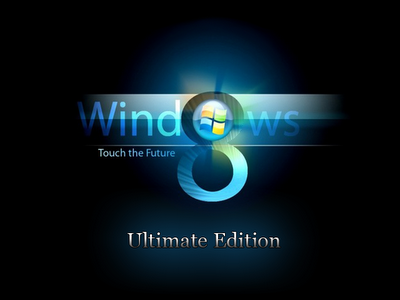
വിന്ഡോസ് 8 പ്രീമിയം എഡിഷന്‍ 

sankar-edakurussi
Windows 8 Pre Xtreme Edition (x86/x64)
Fun & Info @ Keralites.net


Quote:
What is Windows 8 xTreme GGP?
Windows 8 xTreme GGP its a System based on Windows 7 F! Nal:
- Windows 8 xTreme GGP doesn't have any components removed from Original Windows 7 Image so you wont lose any compatibly with software, hardware or miss any stuff at all.
- Windows 8 xTreme GGP its a Clean Windows 7 Image with a compilation of the best tweaks and a new integrated look ... keeping all new features like superbar, etc ...
- Windows 8 xTreme GGP has been tested in a real machine with a compilation of over 200 softwares ...
- All default applications are silently installed before StartUp ...

Tweaks:
* UAC Disabled
* Take Ownership
* Show File Extensions
* Automatic Defragmentation with Diskeeper
* New Cmd File to Right Click
* Enabled Search System Folders in Search
* ClearType
* Windows Will Tell You Exactly What it is Doing When it is Shutting Down or is Booting
* Increase Network Throughput
* ... many tweaks for IE8
* ... many more tweaks for W7 ...

Design:
New Windows 7 Themes
* New Start Button
* New Cursor 3D
* New Hd Wallpapers
* New Hd System Icons Integrated In System
* New User Account Pics
* New Windows Scheme Sounds
* New Logon Screen
* ... and more


Extra Toos Integrated In System:
* SPTD

Extras:
* Cursor Fx Cursor 3D (separate optional)


Download:
http://www.filesonic.com/file/87977701/Windows8.Pre.Xtreme.Edition.x86.x64.part1.rar
http://www.filesonic.com/file/87977707/Windows8.Pre.Xtreme.Edition.x86.x64.part2.rar


Megabytes, Gigabytes, Terabytes… What Are They?

sankar-edakurussi

Megabytes, Gigabytes, Terabytes… What Are They?
These terms are usually used in the world of computing to describe disk space, or data storage space, and system memory. For instance, just a few years ago we were describing hard drive space using the term Megabytes. Today, Gigabytes is the most common term being used to describe the size of a hard drive. In the not so distant future, Terabyte will be a common term. But what are they? This is where it gets quite confusing because there are at least three accepted definitions of each term.
According to the IBM Dictionary of computing, when used to describe disk storage capacity, a megabyte is 1,000,000 bytes in decimal notation. But when the term megabyte is used for real and virtual storage, and channel volume, 2 to the 20th power or 1,048,576 bytes is the appropriate notation. According to the Microsoft Press Computer Dictionary, a megabyte means either 1,000,000 bytes or 1,048,576 bytes. According to Eric S. Raymond in The New Hacker's Dictionary, a megabyte is always 1,048,576 bytes on the argument that bytes should naturally be computed in powers of two. So which definition do most people conform to?
When referring to a megabyte for disk storage, the hard drive manufacturers use the standard that a megabyte is 1,000,000 bytes. This means that when you buy an 80 Gigabyte Hard drive you will get a total of 80,000,000,000 bytes of available storage. This is where it gets confusing because Windows uses the 1,048,576 byte rule so when you look at the Windows drive properties an 80 Gigabyte drive will report a capacity of 74.56 Gigabytes and a 250 Gigabyte drive will only yield 232 Gigabytes of available storage space. Anybody confused yet? With three accepted definitions, there will always be some confusion so I will try to simplify the definitions a little.
The 1000 can be replaced with 1024 and still be correct using the other acceptable standards. Both of these standards are correct depending on what type of storage you are referring.
Processor or Virtual Storage
Disk Storage
· 1 Bit = Binary Digit
· 8 Bits = 1 Byte
· 1024 Bytes = 1 Kilobyte
· 1024 Kilobytes = 1 Megabyte
· 1024 Megabytes = 1 Gigabyte
· 1024 Gigabytes = 1 Terabyte
· 1024 Terabytes = 1 Petabyte
· 1024 Petabytes = 1 Exabyte
· 1024 Exabytes = 1 Zettabyte
· 1024 Zettabytes = 1 Yottabyte
· 1024 Yottabytes = 1 Brontobyte
· 1024 Brontobytes = 1 Geopbyte
· 1 Bit = Binary Digit
· 8 Bits = 1 Byte
· 1000 Bytes = 1 Kilobyte
· 1000 Kilobytes = 1 Megabyte
· 1000 Megabytes = 1 Gigabyte
· 1000 Gigabytes = 1 Terabyte
· 1000 Terabytes = 1 Petabyte
· 1000 Petabytes = 1 Exabyte
· 1000 Exabytes = 1 Zettabyte
· 1000 Zettabytes = 1 Yottabyte
· 1000 Yottabytes = 1 Brontobyte
· 1000 Brontobytes = 1 Geopbyte
This is based on the IBM Dictionary of computing method to describe disk storage - the simplest.
Now let's go into a little more detail.
Bit: A Bit is the smallest unit of data that a computer uses. It can be used to represent two states of information, such as Yes or No.
Byte: A Byte is equal to 8 Bits. A Byte can represent 256 states of information, for example, numbers or a combination of numbers and letters. 1 Byte could be equal to one character. 10 Bytes could be equal to a word. 100 Bytes would equal an average sentence.
Kilobyte: A Kilobyte is approximately 1,000 Bytes, actually 1,024 Bytes depending on which definition is used. 1 Kilobyte would be equal to this paragraph you are reading, whereas 100 Kilobytes would equal an entire page.
Megabyte: A Megabyte is approximately 1,000 Kilobytes. In the early days of computing, a Megabyte was considered to be a large amount of data. These days with a 500 Gigabyte hard drive on a computer being common, a Megabyte doesn't seem like much anymore. One of those old 3-1/2 inch floppy disks can hold 1.44 Megabytes or the equivalent of a small book. 100 Megabytes might hold a couple volumes of Encyclopedias. 600 Megabytes is about the amount of data that will fit on a CD-ROM disk.
Gigabyte: A Gigabyte is approximately 1,000 Megabytes. A Gigabyte is still a very common term used these days when referring to disk space or drive storage. 1 Gigabyte of data is almost twice the amount of data that a CD-ROM can hold. But it's about one thousand times the capacity of a 3-1/2 floppy disk. 1 Gigabyte could hold the contents of about 10 yards of books on a shelf. 100 Gigabytes could hold the entire library floor of academic journals.
Terabyte: A Terabyte is approximately one trillion bytes, or 1,000 Gigabytes. There was a time that I never thought I would see a 1 Terabyte hard drive, now one and two terabyte drives are the normal specs for many new computers.  To put it in some perspective, a Terabyte could hold about 3.6 million 300 Kilobyte images or maybe about 300 hours of good quality video. A Terabyte could hold 1,000 copies of the Encyclopedia Britannica. Ten Terabytes could hold the printed collection of the Library of Congress. That's a lot of data.
Petabyte: A Petabyte is approximately 1,000 Terabytes or one million Gigabytes. It's hard to visualize what a Petabyte could hold. 1 Petabyte could hold approximately 20 million 4-door filing cabinets full of text. It could hold 500 billion pages of standard printed text. It would take about 500 million floppy disks to store the same amount of data.
Exabyte: An Exabyte is approximately 1,000 Petabytes. Another way to look at it is that an Exabyte is approximately one quintillion bytes or one billion Gigabytes. There is not much to compare an Exabyte to. It has been said that 5 Exabytes would be equal to all of the words ever spoken by mankind.
Zettabyte: A Zettabyte is approximately 1,000 Exabytes. There is nothing to compare a Zettabyte to but to say that it would take a whole lot of ones and zeroes to fill it up.
Yottabyte: A Yottabyte is approximately 1,000 Zettabytes. It would take approximately 11 trillion years to download a Yottabyte file from the Internet using high-power broadband. You can compare it to the World Wide Web as the entire Internet almost takes up about a Yottabyte.
: A Brontobyte is (you guessed it) approximately 1,000 Yottabytes. The only thing there is to say about a Brontobyte is that it is a 1 followed by 27 zeroes!
GeopbyteA Geopbyte is about 1000 Brontobytes! Not sure why this term was created. I'm doubting that anyone alive today will ever see a Geopbyte hard drive. One way of looking at a geopbyte is 15267 6504600 2283229 4012496 7031205 376 bytes!

മൊബൈല്‍ പോര്‍ ട്ടബിലിറ്റി

sankar-edakurussi
Fun & Info @ Keralites.net

Xp more,,,,,,,,,,

sankar-edakurussi
20 things you didn't know about Windows XP

You've read the reviews and digested the key feature enhancements and operational changes. Now it's time to delve a bit deeper and uncover some of Windows XP's secrets.

1. It boasts how long it can stay up. Whereas previous versions of Windows were coy about how long they went between boots, XP is positively proud of its stamina. Go to the Command Prompt in the Accessories menu from the All Programs start button option, and then type 'systeminfo'. The computer will produce a lot of useful info, including the uptime. If you want to keep these, type 'systeminfo > info.txt'. This creates a file called info.txt you can look at later with Notepad. (Professional Edition only).

2. You can delete files immediately, without having them move to the Recycle Bin first. Go to the Start menu, select Run... and type 'gpedit.msc'; then select User Configuration, Administrative Templates, Windows Components, Windows Explorer and find the Do not move deleted files to the Recycle Bin setting. Set it. Poking around in gpedit will reveal a great many interface and system options, but take care -- some may stop your computer behaving as you wish. (Professional Edition only).

3. You can lock your XP workstation with two clicks of the mouse. Create a new shortcut on your desktop using a right mouse click, and enter 'rundll32.exe user32.dll,LockWorkStation' in the location field. Give the shortcut a name you like. That's it -- just double click on it and your computer will be locked. And if that's not easy enough, Windows key + L will do the same.

4. XP hides some system software you might want to remove, such as Windows Messenger, but you can tickle it and make it disgorge everything. Using Notepad or Edit, edit the text file /windows/inf/sysoc.inf, search for the word 'hide' and remove it. You can then go to the Add or Remove Programs in the Control Panel, select Add/Remove Windows Components and there will be your prey, exposed and vulnerable.

5. For those skilled in the art of DOS batch files, XP has a number of interesting new commands. These include 'eventcreate' and 'eventtriggers' for creating and watching system events, 'typeperf' for monitoring performance of various subsystems, and 'schtasks' for handling scheduled tasks. As usual, typing the command name followed by /? will give a list of options -- they're all far too baroque to go into here.

6. XP has IP version 6 support -- the next generation of IP. Unfortunately this is more than your ISP has, so you can only experiment with this on your LAN. Type 'ipv6 install' into Run... (it's OK, it won't ruin your existing network setup) and then 'ipv6 /?' at the command line to find out more. If you don't know what IPv6 is, don't worry and don't bother.

7. You can at last get rid of tasks on the computer from the command line by using 'taskkill /pid' and the task number, or just 'tskill' and the process number. Find that out by typing 'tasklist', which will also tell you a lot about what's going on in your system.

8. XP will treat Zip files like folders, which is nice if you've got a fast machine. On slower machines, you can make XP leave zip files well alone by typing 'regsvr32 /u zipfldr.dll' at the command line. If you change your mind later, you can put things back as they were by typing 'regsvr32 zipfldr.dll'.

9. XP has ClearType -- Microsoft's anti-aliasing font display technology -- but doesn't have it enabled by default. It's well worth trying, especially if you were there for DOS and all those years of staring at a screen have given you the eyes of an astigmatic bat. To enable ClearType, right click on the desktop, select Properties, Appearance, Effects, select ClearType from the second drop-down menu and enable the selection. Expect best results on laptop displays. If you want to use ClearType on the Welcome login screen as well, set the registry entry HKEY_USERS/.DEFAULT/Control Panel/Desktop/FontSmoothingType to 2.

10. You can use Remote Assistance to help a friend who's using network address translation (NAT) on a home network, but not automatically. Get your pal to email you a Remote Assistance invitation and edit the file. Under the RCTICKET attribute will be a NAT IP address, like 192.168.1.10. Replace this with your chum's real IP address -- they can find this out by going to www.whatismyip.com -- and get them to make sure that they've got port 3389 open on their firewall and forwarded to the errant computer.

11. You can run a program as a different user without logging out and back in again. Right click the icon, select Run As... and enter the user name and password you want to use. This only applies for that run. The trick is particularly useful if you need to have administrative permissions to install a program, which many require. Note that you can have some fun by running programs multiple times on the same system as different users, but this can have unforeseen effects.

12. Windows XP can be very insistent about you checking for auto updates, registering a Passport, using Windows Messenger and so on. After a while, the nagging goes away, but if you feel you might slip the bonds of sanity before that point, run Regedit, go to HKEY_CURRENT_USER/Software/Microsoft/Windows/Current Version/Explorer/Advanced and create a DWORD value called EnableBalloonTips with a value of 0.

13. You can start up without needing to enter a user name or password. Select Run... from the start menu and type 'control userpasswords2', which will open the user accounts application. On the Users tab, clear the box for Users Must Enter A User Name And Password To Use This Computer, and click on OK. An Automatically Log On dialog box will appear; enter the user name and password for the account you want to use.

14. Internet Explorer 6 will automatically delete temporary files, but only if you tell it to. Start the browser, select Tools / Internet Options... and Advanced, go down to the Security area and check the box to Empty Temporary Internet Files folder when browser is closed.

15. XP comes with a free Network Activity Light, just in case you can't see the LEDs twinkle on your network card. Right click on My Network Places on the desktop, then select Properties. Right click on the description for your LAN or dial-up connection, select Properties, then check the Show icon in notification area when connected box. You'll now see a tiny network icon on the right of your task bar that glimmers nicely during network traffic.

16. The Start Menu can be leisurely when it decides to appear, but you can speed things along by changing the registry entry HKEY_CURRENT_USER/Control Panel/Desktop/MenuShowDelay from the default 400 to something a little snappier. Like 0.

17. You can rename loads of files at once in Windows Explorer. Highlight a set of files in a window, then right click on one and rename it. All the other files will be renamed to that name, with individual numbers in brackets to distinguish them. Also, in a folder you can arrange icons in alphabetised groups by View, Arrange Icon By... Show In Groups.

18. Windows Media Player will display the cover art for albums as it plays the tracks -- if it found the picture on the Internet when you copied the tracks from the CD. If it didn't, or if you have lots of pre-WMP music files, you can put your own copy of the cover art in the same directory as the tracks. Just call it folder.jpg and Windows Media Player will pick it up and display it.

19. Windows key + Break brings up the System Properties dialogue box; Windows key + D brings up the desktop; Windows key + Tab moves through the taskbar buttons.

20. The next release of Windows XP, codenamed Longhorn, is due and won't be much to write home about. The next big release is codenamed Blackcomb.

കുറച്ചു ശ്രദ്ധിക്കൂ മൊബൈല്‍.......

sankar-edakurussi

 Things You Never Knew Your Cell Phone Could Do 
SendFor all the folks with cell phones. (This should be printed and kept in your car, purse, and wallet. Good information to have with you.)

There are a few things that can be done in times of grave emergencies.

Your mobile phone can actually be a life saver or an emergency tool for survival. Check out the things that you can do with it:
 

FIRST
Emergency
The Emergency Number worldwide for Mobile is 112. If you find Yourself out of the coverage area of your mobile network and there is an Emergency, dial 112 and the mobile will search any existing network to Establish the emergency number for you, and in terestingly, this number 112 can be dialed even if the keypad is locked. Try it out.
SECOND
Have you locked your keys in the car?
Does your car have remote keyless entry? This may come in handy someday. Good reason to own a cell phone: If you lock your keys In the car and the spare keys are at home, call someone at home on their cell phone from your cell phone. Hold your cell phone about a foot.From your car door and ha ve the person at your home press the unlock button, holding it near the mobile phone on their end. Your car will unlock. Saves someone from having to drive your keys to you. Distance is no object. You could be hundreds of miles away, and if you can reach someone who has the other 'remote' for your car, you can unlock the doors (or the trunk).
Editor's Note: It works fine! We tried it out and it unlocked  our car over a cell phone!'

THIRD
Hidden Battery Power
Imagine your cell battery is very low. To activate, press the keys *3370#.Your cell phone will restart with this reserve and the instrument will show a 50% increase in battery. This reserve will get charged when you charge your cell phone next time.


FOURTH
How to disable a STOLEN mobile phone?

To check your Mobile phone's serial number, key in the following Digits on your phone: *#06#. A 15-digit code will appear on the screen. This number is unique to your handset. Write it down and keep it somewhere safe.
If your phone gets stolen, you can phone your service provider a nd giv e them this code. They will then be able to block your handset so even if the thief changes the SIM card, your phone will be totally useless. You probably won't get your phone back, but at least you know that whoever stole it can't use/sell it either. If everybody does this, there would be no point in people stealing mobile phones.

And Finally.....
 

FIFTH

Free Directory Service for Cells
Cell phone companies are charging us $1.00 to $1.75 or more for 411 information calls when they don't have to. Most of us do not carry a telephone directory in our vehicle, which makes this situation even more of a problem. When you need to use the 411 information option, simply dial:(800)FREE411, or (800) 373-3411 without incurring any charge at all. Program this into your cell phone now.

വിന്‍ ഡോസ് ഷോര്‍ ട്ട് കട്ട്

sankar-edakurussi

Quote:
compmgmt.msc - Computer management
devmgmt.msc - Device manager
diskmgmt.msc - Disk management
dfrg.msc - Disk defrag
eventvwr.msc - Event viewer
fsmgmt.msc - Shared folders
gpedit.msc - Group policies
lusrmgr.msc - Local users and groups
perfmon.msc - Performance monitor
rsop.msc - Resultant set of policies
secpol.msc - Local security settings
services.msc - Various Services
msconfig - System Configuration Utility
regedit - Registry Editor
msinfo32 _ System Information
sysedit _ System Edit
win.ini _ windows loading information(also system.ini)
winver _ Shows current version of windows
mailto: _ Opens default email client
command _ Opens command prompt


Run Commands to access the control panel:

Quote:
Add/Remove Programs control appwiz.cpl
Date/Time Properties control timedate.cpl
Display Properties control desk.cpl
FindFast control findfast.cpl
Fonts Folder control fonts
Internet Properties control inetcpl.cpl
Keyboard Properties control main.cpl keyboard
Mouse Properties control main.cpl
Multimedia Properties control mmsys.cpl
Network Properties control netcpl.cpl
Password Properties control password.cpl
Printers Folder control printers
Sound Properties control mmsys.cpl sounds
System Properties control sysdm.cpl


Command Prompt:

Quote:
ANSI.SYS Defines functions that change display graphics, control cursor movement, and reassign keys.
APPEND Causes MS-DOS to look in other directories when editing a file or running a command.
ARP Displays, adds, and removes arp information from network devices.
ASSIGN Assign a drive letter to an alternate letter.
ASSOC View the file associations.
AT Schedule a time to execute commands or programs.
ATMADM Lists connections and addresses seen by Windows ATM call manager.
ATTRIB Display and change file attributes.
BATCH Recovery console command that executes a series of commands in a file.
BOOTCFG Recovery console command that allows a user to view, modify, and rebuild the boot.ini
BREAK Enable / disable CTRL + C feature.
CACLS View and modify file ACL's.
CALL Calls a batch file from another batch file.
CD Changes directories.
CHCP Supplement the International keyboard and character set information.
CHDIR Changes directories.
CHKDSK Check the hard disk drive running FAT for errors.
CHKNTFS Check the hard disk drive running NTFS for errors.
CHOICE Specify a listing of multiple options within a batch file.
CLS Clears the screen.
CMD Opens the command interpreter.
COLOR Easily change the foreground and background color of the MS-DOS window.
COMP Compares files.
COMPACT Compresses and uncompress files.
CONTROL Open control panel icons from the MS-DOS prompt.
CONVERT Convert FAT to NTFS.
COPY Copy one or more files to an alternate location.
CTTY Change the computers input/output devices.
DATE View or change the systems date.
DEBUG Debug utility to create assembly programs to modify hardware settings.
DEFRAG Re-arrange the hard disk drive to help with loading programs.
DEL Deletes one or more files.
DELETE Recovery console command that deletes a file.
DELTREE Deletes one or more files and/or directories.
DIR List the contents of one or more directory.
DISABLE Recovery console command that disables Windows system services or drivers.
DISKCOMP Compare a disk with another disk.
DISKCOPY Copy the contents of one disk and place them on another disk.
DOSKEY Command to view and execute commands that have been run in the past.
DOSSHELL A GUI to help with early MS-DOS users.
DRIVPARM Enables overwrite of original device drivers.
ECHO Displays messages and enables and disables echo.
EDIT View and edit files.
EDLIN View and edit files.
EMM386 Load extended Memory Manager.
ENABLE Recovery console command to enable a disable service or driver.
ENDLOCAL Stops the localization of the environment changes enabled by the setlocal command.
ERASE Erase files from computer.
EXIT Exit from the command interpreter.
EXPAND Expand a M*cros*ft Windows file back to it's original format.
EXTRACT Extract files from the M*cros*ft Windows cabinets.
FASTHELP Displays a listing of MS-DOS commands and information about them.
FC Compare files.
FDISK Utility used to create partitions on the hard disk drive.
FIND Search for text within a file.
FINDSTR Searches for a string of text within a file.
FIXBOOT Writes a new boot sector.
FIXMBR Writes a new boot record to a disk drive.
FOR Boolean used in batch files.
FORMAT Command to erase and prepare a disk drive.
FTP Command to connect and operate on a FTP server.
FTYPE Displays or modifies file types used in file extension associations.
GOTO Moves a batch file to a specific label or location.
GRAFTABL Show extended characters in graphics mode.
HELP Display a listing of commands and brief explanation.
IF Allows for batch files to perform conditional processing.
IFSHLP.SYS 32-bit file manager.
IPCONFIG Network command to view network adapter settings and assigned values.
KEYB Change layout of keyboard.
LABEL Change the label of a disk drive.
LH Load a device driver in to high memory.
LISTSVC Recovery console command that displays the services and drivers.
LOADFIX Load a program above the first 64k.
LOADHIGH Load a device driver in to high memory.
LOCK Lock the hard disk drive.
LOGON Recovery console command to list installations and enable administrator login.
MAP Displays the device name of a drive.
MD Command to create a new directory.
MEM Display memory on system.
MKDIR Command to create a new directory.
MODE Modify the port or display settings.
MORE Display one page at a time.
MOVE Move one or more files from one directory to another directory.
MSAV Early M*cros*ft Virus scanner.
MSD Diagnostics utility.
MSCDEX Utility used to load and provide access to the CD-ROM.
NBTSTAT Displays protocol statistics and current TCP/IP connections using NBT
NET Update, fix, or view the network or network settings
NETSH Configure dynamic and static network information from MS-DOS.
NETSTAT Display the TCP/IP network protocol statistics and information.
NLSFUNC Load country specific information.
NSLOOKUP Look up an IP address of a domain or host on a network.
PATH View and modify the computers path location.
PATHPING View and locate locations of network latency.
PAUSE Command used in batch files to stop the processing of a command.
PING Test / send information to another network computer or network device.
POPD Changes to the directory or network path stored by the pushd command.
POWER Conserve power with computer portables.
PRINT Prints data to a printer port.
PROMPT View and change the MS-DOS prompt.
PUSHD Stores a directory or network path in memory so it can be returned to at any time.
QBASIC Open the QBasic.
RD Removes an empty directory.
REN Renames a file or directory.
RENAME Renames a file or directory.
RMDIR Removes an empty directory.
ROUTE View and configure windows network route tables.
RUNAS Enables a user to execute a program on another computer.
SCANDISK Run the scandisk utility.
SCANREG Scan registry and recover registry from errors.
SET Change one variable or string to another.
SETLOCAL Enables local environments to be changed without affecting anything else.
SETVER Change MS-DOS version to trick older MS-DOS programs.
SHARE Installs support for file sharing and locking capabilities.
SHIFT Changes the position of replaceable parameters in a batch program.
SHUTDOWN Shutdown the computer from the MS-DOS prompt.
SMARTDRV Create a disk cache in conventional memory or extended memory.
SORT Sorts the input and displays the output to the screen.
START Start a separate window in Windows from the MS-DOS prompt.
SUBST Substitute a folder on your computer for another drive letter.
SWITCHES Remove add functions from MS-DOS.
SYS Transfer system files to disk drive.
TELNET Telnet to another computer / device from the prompt.
TIME View or modify the system time.
TITLE Change the title of their MS-DOS window.
TRACERT Visually view a network packets route across a network.
TREE View a visual tree of the hard disk drive.
TYPE Display the contents of a file.
UNDELETE Undelete a file that has been deleted.
UNFORMAT Unformat a hard disk drive.
UNLOCK Unlock a disk drive.
VER Display the version information.
VERIFY Enables or disables the feature to determine if files have been written properly.
VOL Displays the volume information about the designated drive.
XCOPY Copy multiple files, directories, and/or drives from one location to another.
TRUENAME When placed before a file, will display the whole directory in which it exists
TASKKILL It allows you to kill those unneeded or locked up applications


Windows XP/VISTA/WINDOWS 7 Shortcuts:

Quote:
ALT+- (ALT+hyphen) Displays the Multiple Document Interface (MDI) child window's System menu
ALT+ENTER View properties for the selected item
ALT+ESC Cycle through items in the order they were opened
ALT+F4 Close the active item, or quit the active program
ALT+SPACEBAR Display the System menu for the active window
ALT+TAB Switch between open items
ALT+Underlined letter Display the corresponding menu
BACKSPACE View the folder one level up in My Computer or Windows Explorer
CTRL+A Select all
CTRL+B Bold
CTRL+C Copy
CTRL+I Italics
CTRL+O Open an item
CTRL+U Underline
CTRL+V Paste
CTRL+X Cut
CTRL+Z Undo
CTRL+F4 Close the active document
CTRL while dragging Copy selected item
CTRL+SHIFT while dragging Create shortcut to selected iteM
CTRL+RIGHT ARROW Move the insertion point to the beginning of the next word
CTRL+LEFT ARROW Move the insertion point to the beginning of the previous word
CTRL+DOWN ARROW Move the insertion point to the beginning of the next paragraph
CTRL+UP ARROW Move the insertion point to the beginning of the previous paragraph
SHIFT+DELETE Delete selected item permanently without placing the item in the Recycle Bin
ESC Cancel the current task
F1 Displays Help
F2 Rename selected item
F3 Search for a file or folder
F4 Display the Address bar list in My Computer or Windows Explorer
F5 Refresh the active window
F6 Cycle through screen elements in a window or on the desktop
F10 Activate the menu bar in the active program
SHIFT+F10 Display the shortcut menu for the selected item
CTRL+ESC Display the Start menu
SHIFT+CTRL+ESC Launches Task Manager
SHIFT when you insert a CD Prevent the CD from automatically playing
WIN Display or hide the Start menu
WIN+BREAK Display the System Properties dialog box
WIN+D Minimizes all Windows and shows the Desktop
WIN+E Open Windows Explorer
WIN+F Search for a file or folder
WIN+F+CTRL Search for computers
WIN+L Locks the desktop
WIN+M Minimize or restore all windows
WIN+R Open the Run dialog box
WIN+TAB Switch between open items


Windows Explorer Shortcuts:

Quote:
ALT+SPACEBAR - Display the current window’s system menu
SHIFT+F10 - Display the item's context menu
CTRL+ESC - Display the Start menu
ALT+TAB - Switch to the window you last used
ALT+F4 - Close the current window or quit
CTRL+A - Select all items
CTRL+X - Cut selected item(s)
CTRL+C - Copy selected item(s)
CTRL+V - Paste item(s)
CTRL+Z - Undo last action
CTRL+(+) - Automatically resize the columns in the right hand pane
TAB - Move forward through options
ALT+RIGHT ARROW - Move forward to a previous view
ALT+LEFT ARROW - Move backward to a previous view
SHIFT+DELETE - Delete an item immediately
BACKSPACE - View the folder one level up
ALT+ENTER - View an item’s properties
F10 - Activate the menu bar in programs
F6 - Switch between left and right panes
F5 - Refresh window contents
F3 - Display Find application
F2 - Rename selected item


Internet Explorer Shortcuts:

Quote:
CTRL+A - Select all items on the current page
CTRL+D - Add the current page to your Favorites
CTRL+E - Open the Search bar
CTRL+F - Find on this page
CTRL+H - Open the History bar
CTRL+I - Open the Favorites bar
CTRL+N - Open a new window
CTRL+O - Go to a new location
CTRL+P - Print the current page or active frame
CTRL+S - Save the current page
CTRL+W - Close current browser window
CTRL+ENTER - Adds the http://www. (url) .com
SHIFT+CLICK - Open link in new window
BACKSPACE - Go to the previous page
ALT+HOME - Go to your Home page
HOME - Move to the beginning of a document
TAB - Move forward through items on a page
END - Move to the end of a document
ESC - Stop downloading a page
F11 - Toggle full-screen view
F5 - Refresh the current page
F4 - Display list of typed addresses
F6 - Change Address bar and page focus
ALT+RIGHT ARROW - Go to the next page
SHIFT+CTRL+TAB - Move back between frames
SHIFT+F10 - Display a shortcut menu for a link
SHIFT+TAB - Move back through the items on a page
CTRL+TAB - Move forward between frames
CTRL+C - Copy selected items to the clipboard
CTRL+V - Insert contents of the clipboard
ENTER - Activate a selected link
HOME - Move to the beginning of a document
END - Move to the end of a document
F1 - Display Internet Explorer Help